Using the AI assistant
The AI assistant is a chat panel for asking questions about your data and getting help analyzing your experiments — without leaving the portal.
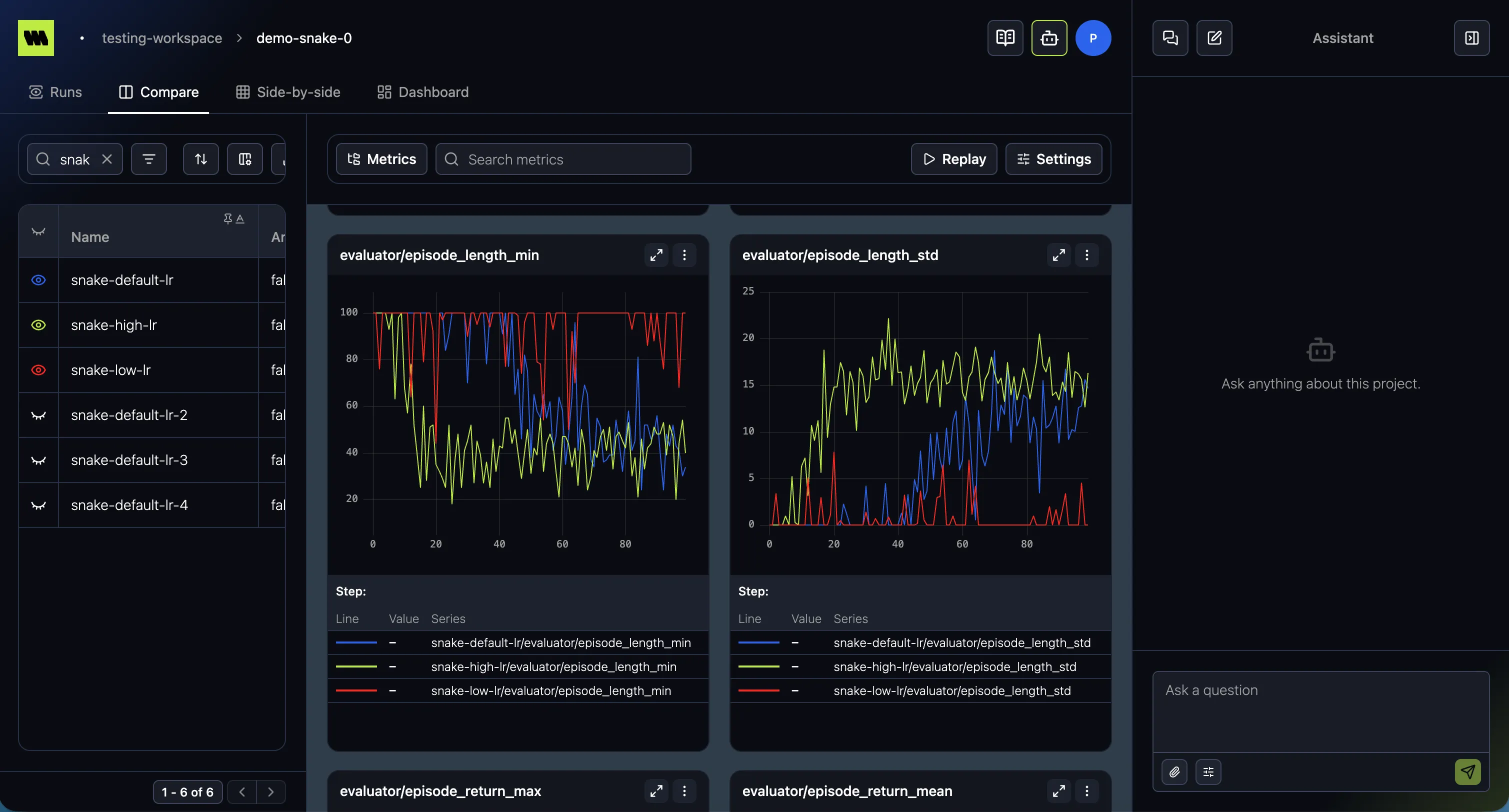
Open and resize the panel
Section titled “Open and resize the panel”Toggle the assistant any time with ⌘/Ctrl + L, or from the assistant button in the header. It opens as a panel beside the main content; drag the divider between them to resize it. Your chosen width is remembered.
Ask a question
Section titled “Ask a question”Once you are inside a project scope, you can type into the Ask a question box and send your message:
-
Press ⌘/Ctrl + Enter, or use the Send button.
-
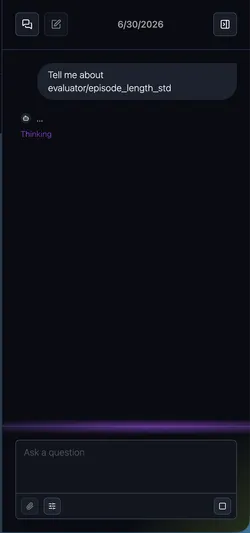
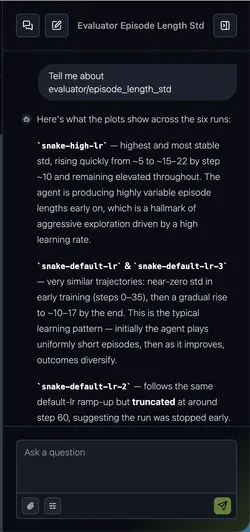
While the assistant is responding, the message streams in and the Send button becomes a Cancel control you can use to stop the run.
Choose the model and effort
Section titled “Choose the model and effort”Before sending, you can pick:
- Model — Haiku, Sonnet, or Opus (faster vs. more capable).
- Effort — Low, Medium, or High (how much reasoning the assistant puts in).
Attach files
Section titled “Attach files”Use the attach button to add one or more files to your message. Each attachment shows its name, size, and upload status (uploading, ready, or error), and you can remove one with its × button. There’s a limit on how many files you can attach — the attach button is disabled once you reach it. Sending is blocked while any attachment is still uploading.
Conversations
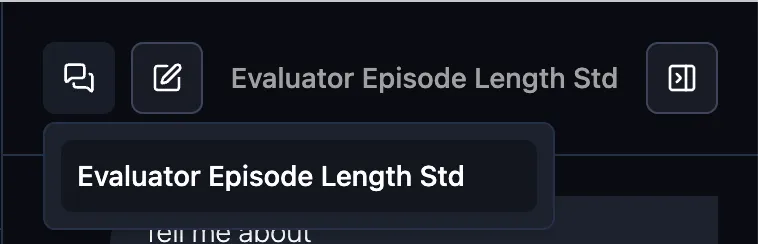
Section titled “Conversations”Past conversations are listed newest-first, labeled by title or creation date, with the active one highlighted. Select one to resume it. If you’ve never chatted, you’ll see an empty state.
Context awareness
Section titled “Context awareness”The assistant is aware of where you are in the portal, so questions about the current workspace, project, or run are answered in that context.