Tables
Several views in the portal are built on the same table, with the same controls for finding and organizing rows — the runs table and the environments table among them. This page covers those shared controls. Which fields and columns are available depends on the view.
Search
Section titled “Search”Type in the Search box to filter rows. Regular expressions can be used as well.

Filter
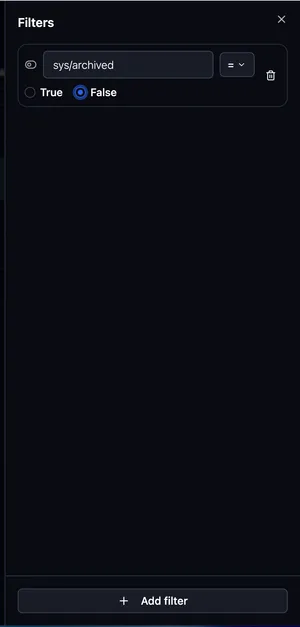
Section titled “Filter”Open the filter control to build one or more filter rows. Each row is a field → operator → value:
- Open filter management panel by clicking corresponding icon in table toolbar.
- Pick a field — the available fields depend on the table. Alongside attributes you can filter on metric summaries (a metric reduced to a single number, such as its last or maximum value).
- Pick an operator. The available operators depend on the field’s type:
- Number / date / duration:
=,!=,>=,>,<,<= - Metric summary:
=,!=,>=,>,<,<= - String:
=,!=,CONTAINS,IN,NOT IN - Set (tags / string sets):
CONTAINS,CONTAINS ANY,CONTAINS ALL,IN,NOT IN - Boolean:
=,!=
- Number / date / duration:
- Enter a value — the input adapts to the field type (text, number, date picker, or true/false).
Use Add filter to add another row. From the second row onward each row carries a logical operator select — choose AND or OR to control how it joins the rows before it.
Groups
Section titled “Groups”For anything beyond a flat list of conditions, use Add group. A group is a bordered block holding its own set of filter rows, with its own Add filter button and a Remove group action. Rows inside a group combine with each other, and the group as a whole joins the rest of your filters through its own AND / OR select.
This is what lets you express conditions that a flat list can’t, for example
“status = CLOSED AND (lr > 0.01 OR optimizer = adam)” — put the two alternatives in a group and
join it to the first condition with AND.
Groups hold filter rows, not other groups, so nesting is one level deep.
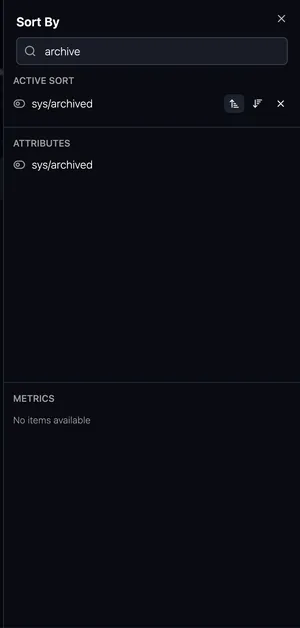
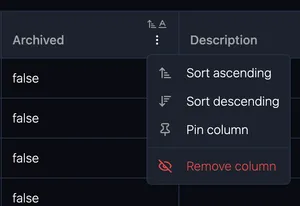
Use Sort to order the table by a field — choose the field and the direction (ascending or descending). Sorting can be set either from sort management panel or from dropdown menu in table header cell.
Columns
Section titled “Columns”To choose which columns are displayed in a table use the manage columns panel:
- Search columns to find a field quickly.
- Add or remove columns.
- Reorder displayed columns by dragging its header cell.
- Resize a column by dragging its header cell edge.
- Remove unpinned clears all non-pinned columns at once.
Some columns are pinned to the left and can’t be removed or reordered.
Pagination
Section titled “Pagination”The table is paged, with the controls below it:
- Range — the current window and total, read as “X - Y of Z”.
- Per page — a dropdown to choose the page size: 10, 25 (default), 50, or 100.
- Page navigation — first, previous, next, and last page buttons.
- Go to page — the page number between the arrows is an input. Type a page number and press Enter to jump straight there, which beats clicking through a long table. Out-of-range numbers are clamped to the first or last page.
Export
Section titled “Export”Use the export action in the toolbar to download the visible rows as a CSV file. See Exporting data.