
Artifacts
An artifact is a named, versioned file or set of files stored in a workspace — a model checkpoint, a dataset, a tokenizer, an eval set. Artifacts are uploaded with the artifacts SDK; the portal is where you browse them, download their files, and point aliases at versions.
Each artifact is identified by a type and a name, such as model/my-llm, and holds a series of
immutable versions numbered v0, v1, v2, … Aliases name a version: latest always points at the
newest committed one, and you can add your own, such as production or best-eval.
The Artifacts tab
Section titled “The Artifacts tab”A workspace’s Artifacts tab lists its artifacts with their Name, Type, Latest version, when and by whom each was Created, and their IDs. Click an artifact’s name to open it.
Search artifacts finds artifacts whose type/name contains what you type, ignoring case. A workspace with
none shows No artifacts.
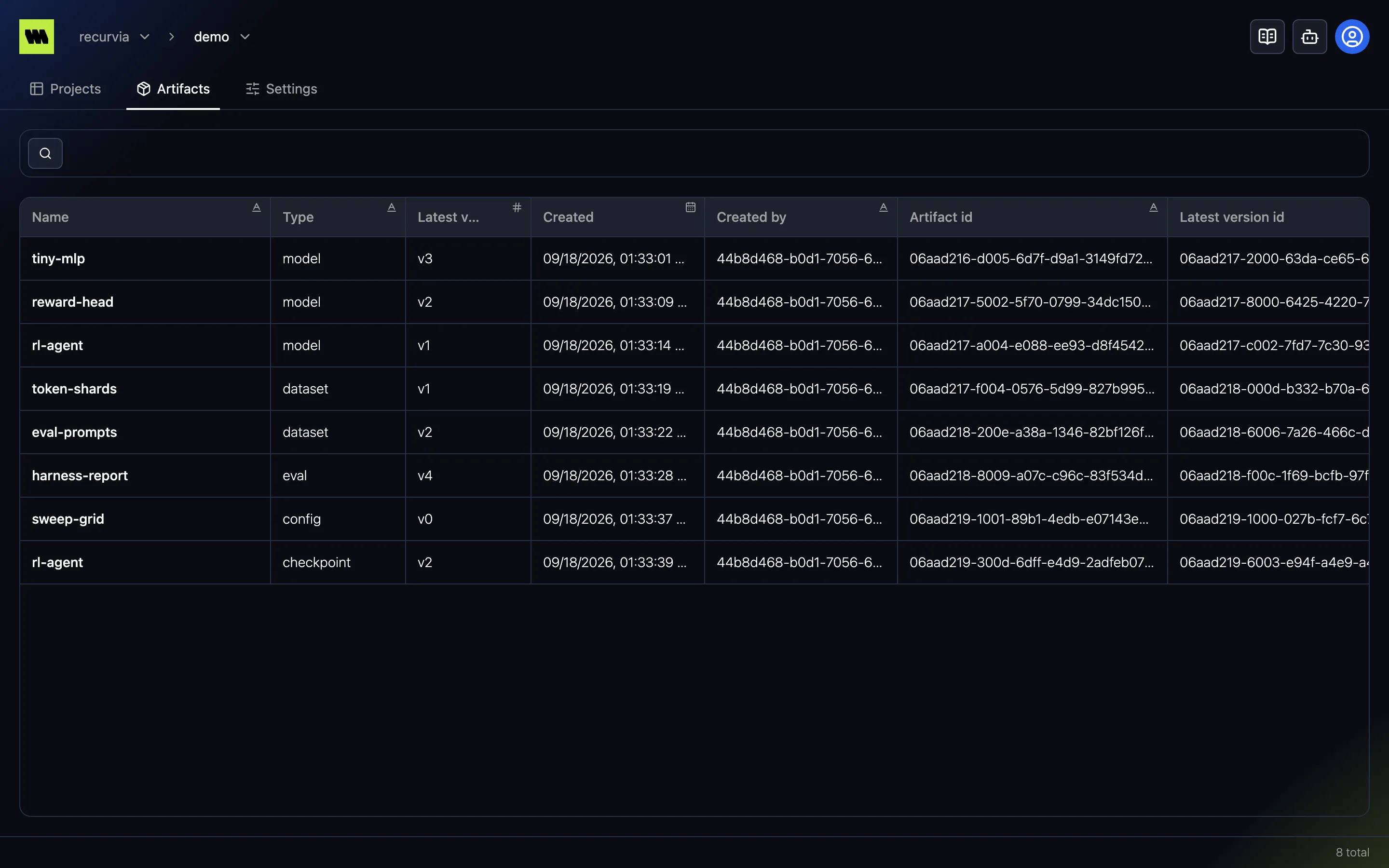
An artifact
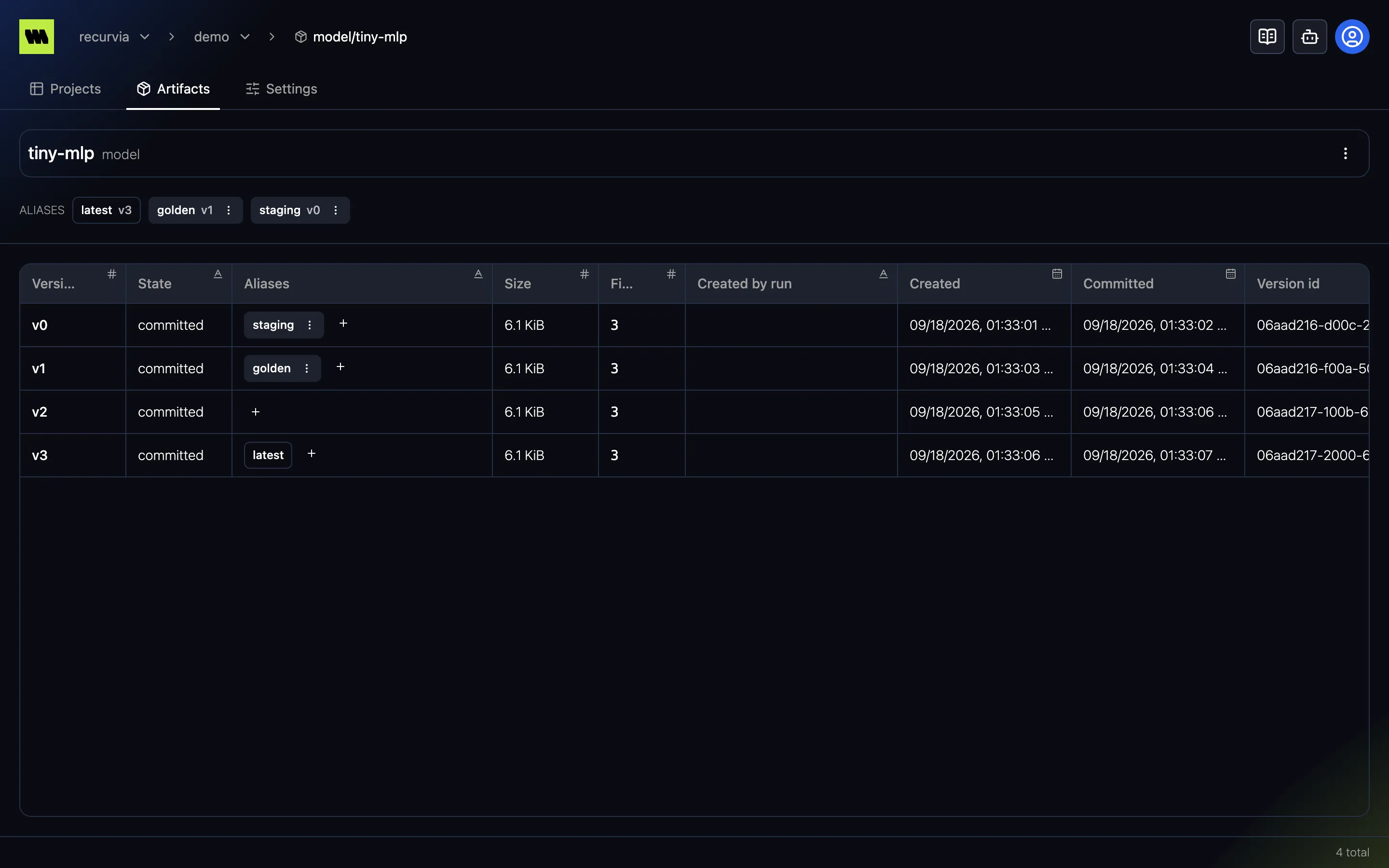
Section titled “An artifact”An artifact’s page shows its type and name, its Aliases — each with the version it points at — and a table of its Versions:
| Column | What it shows |
|---|---|
| Version | The version number; click it to open the version |
| State | committed, or draft while an upload is in progress |
| Aliases | The aliases pointing at this version |
| Size, Files | The version’s total size and number of files |
| Created by run | The run that uploaded it, if any |
| Created, Committed | When the upload started and finished |
| Version id | The version’s ID |
A version
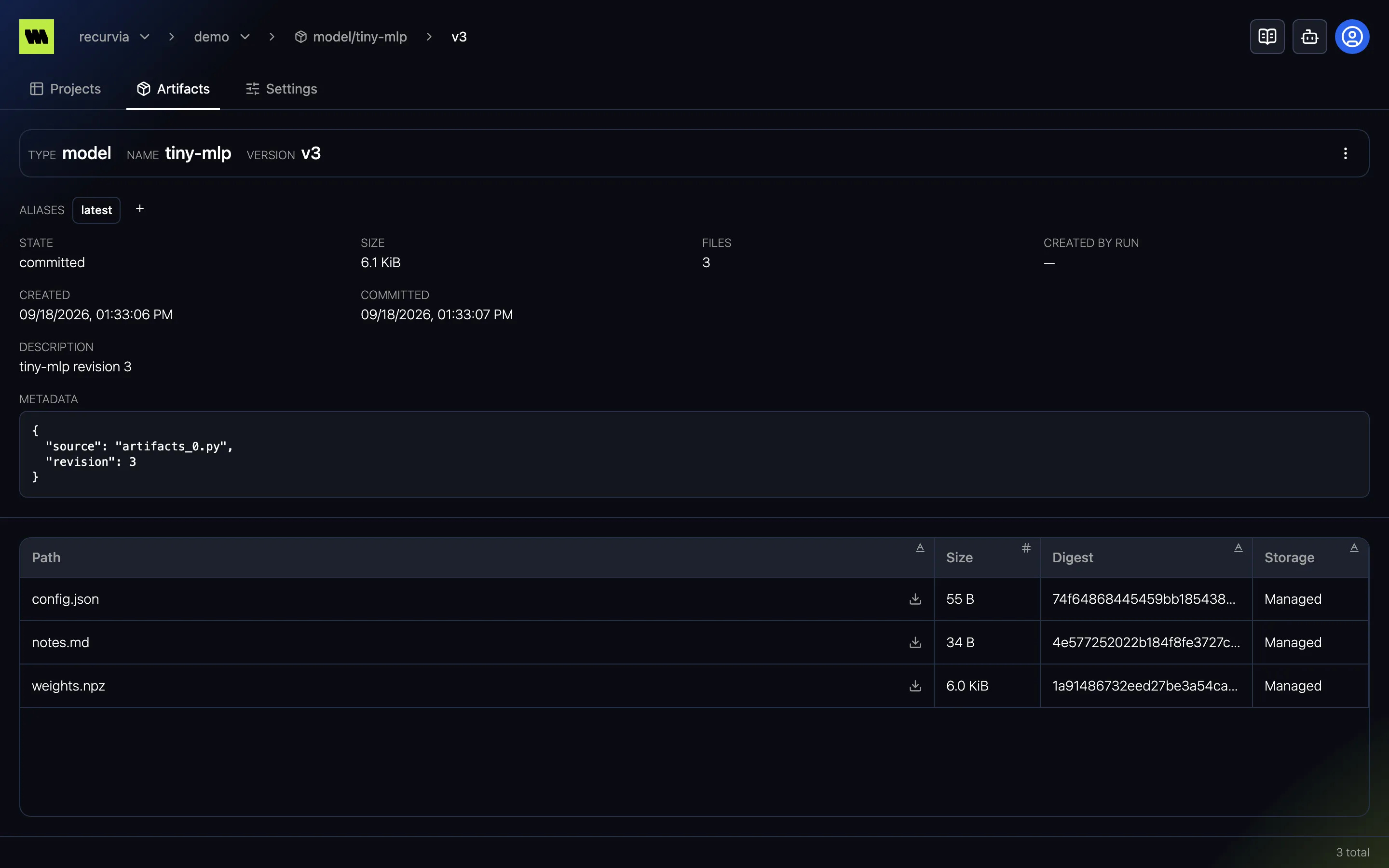
Section titled “A version”A version’s page shows its details — State, Size, Files, Created by run, Created, Committed — its Aliases, its Description, and its Metadata (long metadata is cut short, with Show all to expand it). Below them is the version’s list of files, with each file’s Path, Size, Digest, and Storage:
- Managed files are stored by Metrana. Click the path (Download file) to download the file.
- Reference files live in your own bucket, so the portal can’t serve them. Click the path to see the file’s storage URI, with Copy storage URI.
Aliases
Section titled “Aliases”Aliases appear as badges with the version they point at; hover one to see when it was set. latest is managed
by Metrana — it always points at the newest committed version and can’t be changed or removed.
Workspace members, admins, and owners can manage aliases (viewers only browse):
- Add an alias — on a version’s page (or its row in the versions table), click Add version alias (the
+ button). Type a new alias name and click Add new alias, or pick an existing alias from the list to
move it here and click Reassign alias. Names can use letters, digits, and
_ + - ., with no spaces. - Remove an alias — open the alias badge’s menu and choose Remove alias, then confirm. The alias is removed for good.
To set aliases from code, use set_artifact_alias.
Delete a version or an artifact
Section titled “Delete a version or an artifact”Members and above can also delete, from the ⋮ (Actions) menu at the top of the page:
- Delete version — on a version’s page. The version stops resolving and its files are no longer listed. The
dialog lists the aliases that will be removed with it; if it’s the newest version,
latestmoves back to the previous one. - Delete artifact — on an artifact’s page. Every version and alias is removed. Confirm with Delete permanently.
Neither can be undone.